Set up/Personal Gmail
Personal Gmail setup
Five steps that take about two minutes. One of them is a warning screen from Google that looks worse than it is. Step 3 explains it.
Recruit from a university address that runs on Google? The university setup skips that screen.
How to set up
1Make your own copy of the sheet
Open the template. Google shows you a Copy document box straight away. Give it any name you like and click Make a copy.
A yellow note appears in that box saying an Apps Script file and functionality will also be copied. That is Google’s name for Blotter itself, the part that does the work. Seeing it means the copy is arriving complete.
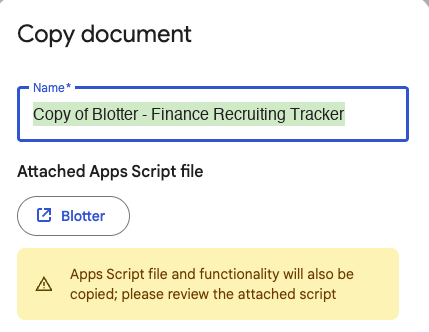
The copy lands in your own Google Drive. It is yours.
2Open the Blotter menu in your copy
In your new copy, look along the top menu bar. To the right of Help there is a menu called Blotter. Open it and click Step 1: Set up this sheet.
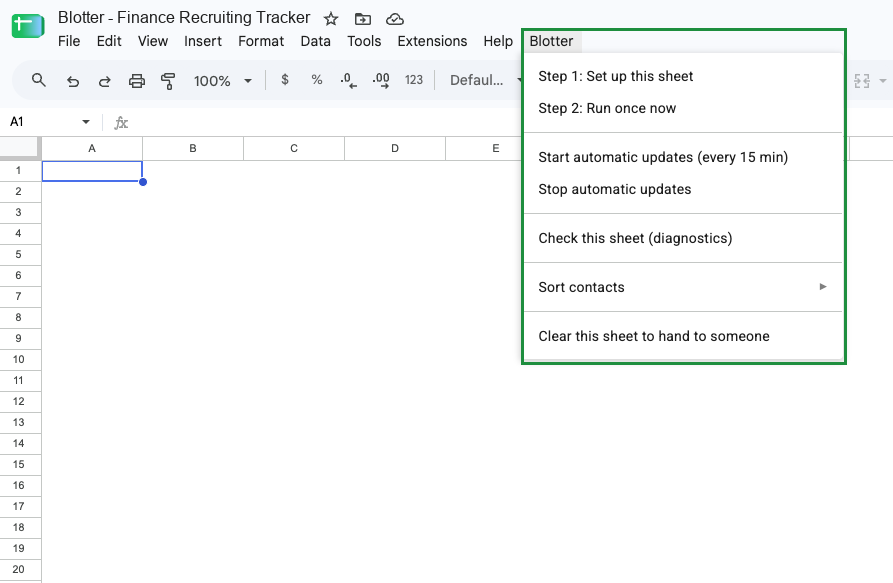
A yellow bar may appear across the top first, saying some formulas are trying to send and receive data from external parties, with an Allow access button. Click it. That is the picture on the Start here tab loading from blotterib.com, and Google asks before any sheet fetches anything from outside itself.
If the menu is not there, wait a few seconds and reload the page. If it is still missing, make the copy again. A copy occasionally arrives without Blotter attached, and a second copy fixes it.
3Google warns you the app is not verified
Google shows a screen saying it hasn’t verified this app. It looks alarming. Here is what it means.
The email address in the brackets is yours. The copy of Blotter you just made lives in your Google account, and Google treats everything in your account as yours.
The screen is asking whether you want to let Blotter read your own Google account. Google shows it for any app that has not been through its app review, a paid process Blotter has not done. It is a standard notice, not a judgement about what Blotter does.
If you had a university email, this screen would not appear. Google trusts universities automatically.
Click Advanced at the bottom left.
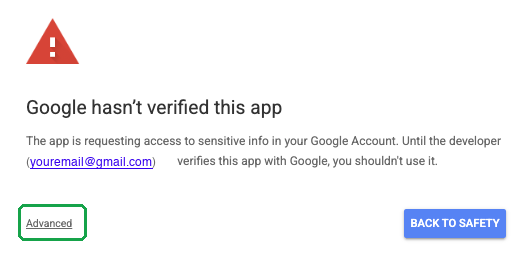
The panel opens. Click Go to Blotter (unsafe).
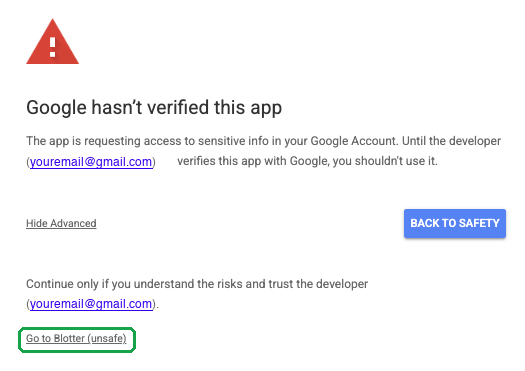
Unsafeis Google’s standard word for anything it has not reviewed.
4Give it permission. Tick Select all.
Next, Google asks what Blotter is allowed to do. The screen is headed Blotter wants access to your Google Account.
Tick Select all, then click Continue.If you don’t select all, Blotter will not run correctly.
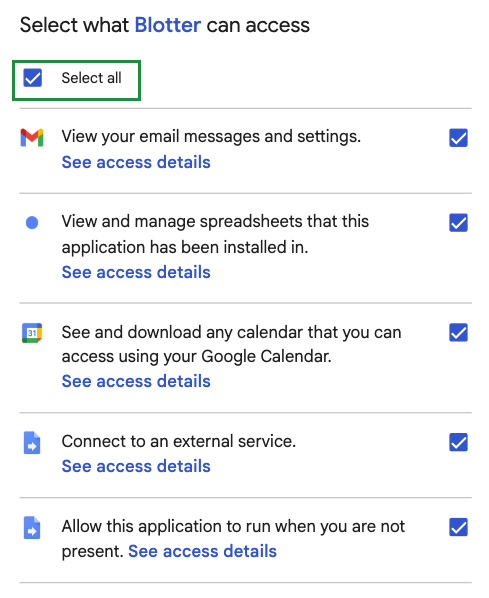
Google’s wording is broad, because it is the same wording for every app that asks. What each one is for here:
- View your email messages and settings. To see who you have written to and heard back from. Envelopes, not contents.
- View and manage spreadsheets that this application has been installed in. To write the answers back into your tracker. That is this one file.
- See and download any calendar you can access. To spot that a call has been scheduled without you entering it.
- Connect to an external service. To ask Blotter’s server what the updates should be.
- Allow this application to run when you are not present. So it can refresh every fifteen minutes on its own.
5Go to the Start here tab
That is the website’s part done. Everything else happens in your sheet, and it walks you through it.
Along the bottom of your copy there is a tab called Start here. Open it and follow it down. It covers your settings, adding the people you are networking with, and switching on the automatic updates.
If you are having issues, email blotterib@gmail.com for help.
To stop Blotter entirely, choose Stop automatic updates from the Blotter menu, or remove its access from your Google account permissions. Deleting the spreadsheet removes it too. Nothing of yours is held anywhere else.